
Few things frustrate Shopify merchants more than launching ads, getting sales… and then seeing zero purchases tracked in Meta Ads Manager. Your ads may actually be working, but if the Facebook Pixel isn’t recording purchase events, Meta’s algorithm cannot optimize properly.
The result? Higher ad costs, poor optimization, and unreliable reporting.
In this guide, we’ll walk through why your Facebook Pixel may not be tracking purchases in Shopify and how to fix it step by step using Zotek.
Why Facebook Pixel Purchase Events Matter
The Purchase event is the most important signal you can send to Meta.
When your pixel tracks purchases correctly, Meta can:
- Optimize campaigns for potential buyers instead of clicks
- Improve ad delivery to high-intent audiences
- Measure real ROI from your ads
- Build powerful retargeting audiences
If purchase events are missing, Meta’s system has very little data to learn from, which can make your ads perform poorly.
Common Reasons Your Facebook Pixel Is Not Tracking Purchases
Before fixing the issue, it helps to understand the most common causes.
1. Pixel Installed Incorrectly
If the pixel code isn’t properly installed on your store or checkout flow, purchase events may not fire.
2. Theme or App Conflicts
Some Shopify themes or apps may interfere with pixel scripts.
3. Browser Privacy Restrictions
Updates like iOS privacy changes and ad blockers can block browser-based tracking.
4. Missing Conversion API
Without server-side tracking, some events may be lost before reaching Meta.
5. Duplicate or Conflicting Pixels
If multiple pixels are installed incorrectly, Meta may ignore or block events.
Step 1: Check If Your Pixel Is Installed Correctly
The first thing to verify is whether your pixel is firing on your store.
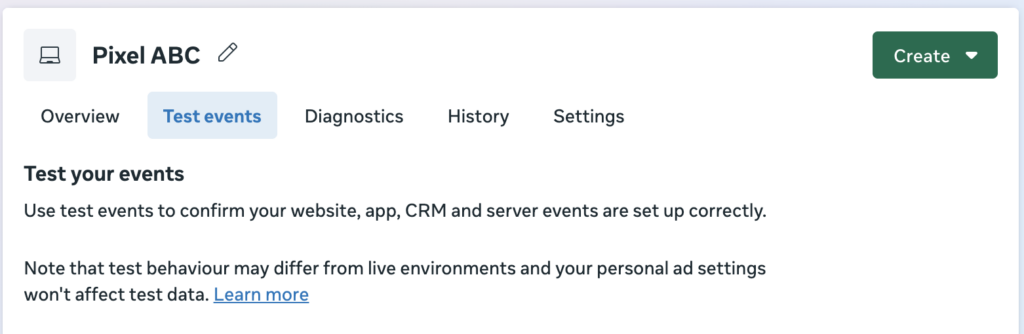
How to test it
- Go to Meta Events Manager
- Select your Pixel
- Click Test Events
- Visit your Shopify store
- Complete a test purchase
You should see events like:
- PageView
- ViewContent
- AddToCart
- InitiateCheckout
- Purchase
If the Purchase event does not appear, your tracking setup likely needs fixing.
Step 2: Verify Your Purchase Event in Events Manager
Sometimes the purchase event exists but is misconfigured.
Check these settings inside Events Manager:
- Purchase event is active
- Event is triggered on order confirmation page
- No event errors appear in diagnostics
If Meta shows warnings such as missing parameters or deduplication issues, the event may not be processed correctly.
Step 3: Check for Duplicate Pixels in Shopify
Another common issue occurs when multiple pixels fire the same event.
This can happen if the pixel is installed through:
- Shopify theme code
- Shopify Sales Channel
- Third-party apps
- Google Tag Manager
Multiple sources firing the same event can confuse Meta and lead to incorrect tracking.
To check this:
- Review theme.liquid or custom scripts
- Check installed apps that manage pixels
- Remove duplicate pixel installations
Ideally, your pixel should be managed from one reliable source.
Step 4: Enable Server-Side Tracking (Conversion API)
Modern privacy restrictions often block browser tracking. That means your purchase event may fire, but never reach Meta.
This is where Conversion API (CAPI) becomes important.
Conversion API sends events directly from your server to Meta, which helps:
- Recover lost purchase events
- Improve data accuracy
- Strengthen ad optimization signals
Step 5: Fix Tracking with Zotek Pixel Tracking
The easiest way to solve Shopify pixel issues is by using a dedicated tracking solution like Zotek.
Instead of manually installing scripts, Zotek handles the entire process.
How to fix purchase tracking using Zotek
1. Install Zotek from the Shopify App Store
Once installed, it connects automatically to your Shopify store.
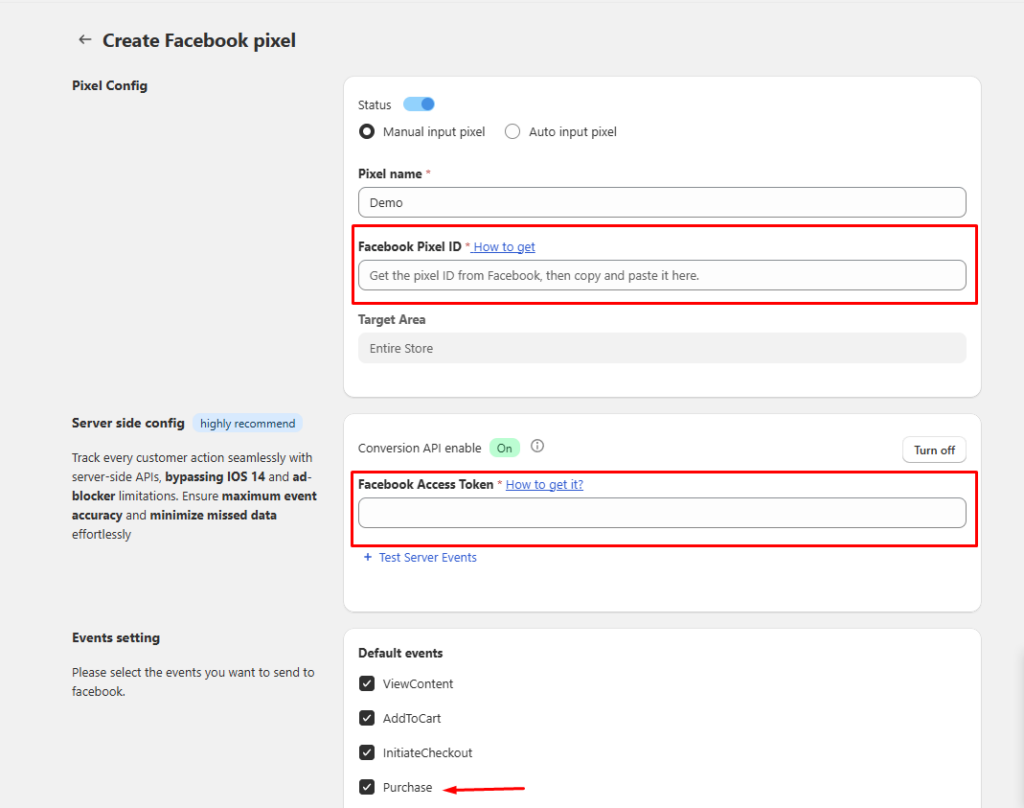
2. Add your Meta Pixel
- Open the Zotek dashboard
- Click Add Pixel
- Select Meta Pixel
- Paste your Pixel ID
3. Enable Conversion API
Turn on Conversion API tracking inside the pixel settings to ensure events are sent through both:
- Browser tracking
- Server-side tracking
4. Save and activate
Zotek will automatically track key ecommerce events including purchases.
Step 6: Test the Purchase Event Again
After configuring your pixel through Zotek, run another test.
- Open Meta Events Manager
- Use the Test Events tool
- Place a test order on your Shopify store
You should now see the Purchase event firing correctly.
Once confirmed, Meta will start receiving reliable conversion data for your ads.
Best Practices for Reliable Pixel Tracking
To keep your purchase tracking accurate, follow these tips:
Use server-side tracking
Conversion API significantly improves event reliability.
Track the full customer journey
Events like AddToCart and InitiateCheckout help Meta learn faster.
Avoid installing pixels in multiple places
Use one tracking method to prevent duplicate events.
Monitor Events Manager regularly
Diagnostics can reveal tracking errors early.
Final Thoughts
When your Facebook Pixel isn’t tracking purchases in Shopify, your ad performance can suffer because Meta lacks the data it needs to optimize campaigns.
By verifying your pixel setup, removing duplicate installations, and enabling Conversion API, you can restore accurate tracking and improve your advertising results.
Using tools like Zotek Pixel Tracking makes the process much easier by managing pixel installation, event tracking, and server-side integration in one place.
With reliable data flowing back to Meta, your campaigns can finally optimize for what matters most: actual purchases. 🚀