
Why COD Still Holds On in 2026
If you’re searching for how to add a COD form to your Shopify store, you’re not alone. Card and wallet payments keep growing, but cash on delivery hasn’t gone anywhere. In Vietnam, industry and survey-based estimates over the past few years have generally placed cash-on-delivery’s share of e-commerce transactions in the 60-70 percent range. Indonesia and the Philippines aren’t far behind, and the same pattern shows up across Egypt and large parts of the Middle East. If your store sells into any of these markets, COD isn’t a feature you tolerate. For a lot of your customers, it’s simply the way they expect to pay.
Most merchants already know they should offer COD. The harder part is doing it well. Shopify wasn’t built with COD as a first-class payment option, so the default checkout experience rarely performs as well as it could. A dedicated COD form fixes that, and setting one up takes a lot less effort than people expect.
COD Form vs. Default Shopify Checkout: What Actually Changes
Shopify’s checkout was designed around card payments. When you enable Cash on Delivery as a manual payment method, customers still go through a flow built for cards; they just skip the step where they enter card details. The fields, the steps, and the confirmation experience stay mostly the same, even though the payment behavior is completely different.
A dedicated COD form replaces that experience with something built specifically for COD. Fewer fields, a layout that makes sense for paying on delivery, and, depending on the app, the ability to order directly from a product page without touching Shopify’s checkout at all. The form also produces cleaner order data, since it collects exactly what you need and nothing else, which makes fraud screening and fulfillment easier later on.
Installing Zotek COD Form: A Step-by-Step Walkthrough
Getting Zotek COD Form running on your store takes a handful of steps. Most of them are checkbox decisions, not technical work.
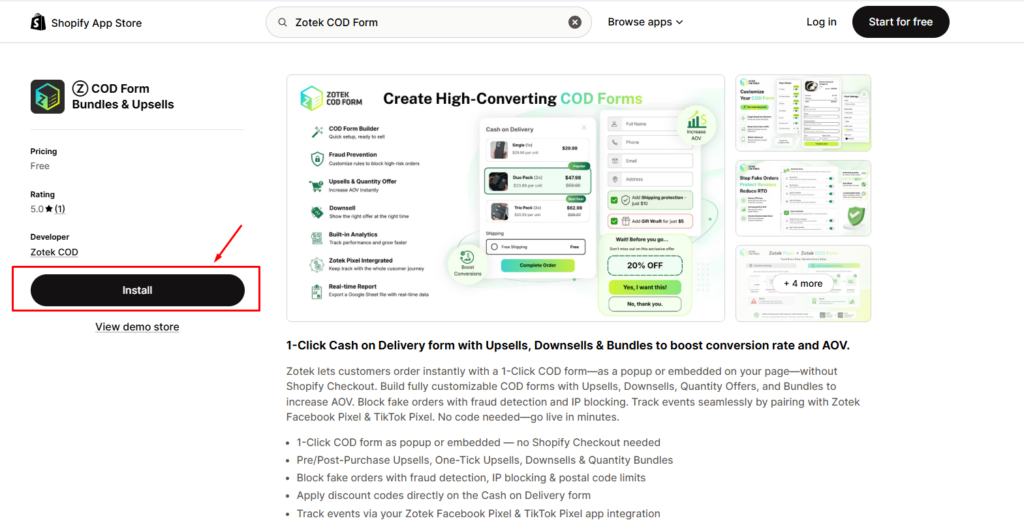
1. Search “Zotek COD Form” (listed as the Ⓞ COD Form Bundles & Upsells app) in the Shopify App Store and click Install. It’s free, with no paid tier gating core functionality.
2. Approve the requested permissions. Zotek needs access to customer and order data to build and process the form, plus permission to edit your Online Store theme and checkout so it can embed the form where you want it.
3. Choose how the form should appear: as a pop-up triggered from a “Buy Now” button, or embedded directly into a product page section. Most stores test both and keep whichever converts better for their theme.
4. If you’re already running Zotek Facebook/TikTok Pixel, connect it in the integration settings. COD orders placed through the form will then report as conversion events automatically, which matters if you’re running paid ads and need accurate attribution.
Configuring Your Form: Fields, Layout, and Branding
Once the form is live, the real work is in the configuration choices, not the install.
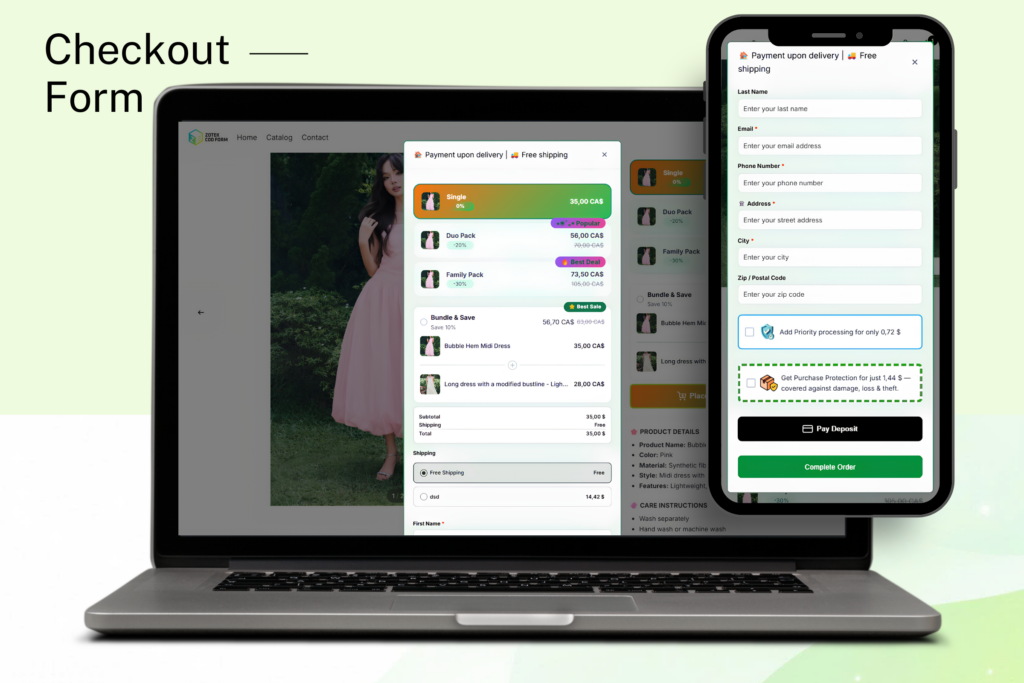
Start with fields. Use the drag-and-drop editor to keep the form to what you actually need, usually name, phone number, and address. Every additional required field gives a customer one more reason to hesitate or abandon. If you need something extra, like a delivery note or a preferred time window, add it as an optional field rather than a required one.
Next, decide on layout and branding. Match the form’s colors and button styles to your store theme so it feels native to your page instead of bolted on, and enable the order summary display so customers can see exactly what they’re agreeing to pay before they submit.
Finally, set up your fraud prevention settings before launch, not after problems start. Zotek COD Form includes IP blocking and postal code restrictions as part of its built-in toolkit. You don’t need to turn everything on right away, but decide upfront which of these you’ll need, based on how exposed your market is to fake or low-intent orders.
Testing Your Setup Before You Go Live
Before sending traffic to your new form, walk through the way a real customer would, on both mobile and desktop, since most COD shoppers are on their phones.
- Place a full test order, including any OTP step if you’ve enabled it, and confirm you receive the code and can complete verification.
- Read your confirmation message as if you were the customer. Does it answer the obvious questions: did the order go through, when will it arrive, what happens if no one’s home?
- Try an invalid phone number, a blocked email, or a duplicate submission to see how the form handles edge cases.
- Open the resulting order in your Shopify admin and confirm the data looks the way you expect it to.
Three Settings That Improve Completion Rate Immediately
Once your form is live, a few specific choices move completion rate more than anything else.
1. Cut every field that isn’t essential. A three-field form (name, phone, address) consistently outperforms a longer one, even when the extra fields feel reasonable to you as the merchant.
2. Use OTP selectively, not by default. It filters fake orders well, but it adds friction. Turn it on if fake orders are a real problem in your market; if they’re not, the extra step may cost you more completions than it saves you in fraud.
3. Design for mobile first, then check desktop. Most COD shoppers are checking out on a phone, so that’s the version to get right first. Confirm the desktop holds up afterward.
Final Thoughts
Adding a COD form to your Shopify store isn’t a multi-day technical project. The install itself takes minutes. What actually determines whether it performs well is the handful of configuration decisions you make right after: which fields to keep, how much friction to add for fraud prevention, and whether you’ve tested the experience the way your customers will actually use it.