
Shopify BFCM Pixel Checklist: Test CAPI & Purchase Events
Black Friday traffic can expose a tracking problem that nobody noticed on a quiet day. Your store may receive orders while the advertising dashboard shows something different. But a discrepancy does not automatically mean your Pixel is broken: Shopify records orders, whereas ad platforms use their own event and attribution rules. This Shopify BFCM pixel checklist helps you separate real tracking issues from normal reporting differences.
Before you scale campaigns, use this checklist to confirm that your tracking configuration is ready for BFCM. Set up a controlled test and keep a short record of what you observed.
1. Check the store, pixel ID and destination account
Record the Shopify store you are testing and the Meta, TikTok or other supported pixel ID connected in your tracking app. Confirm that events are being sent to the intended account and that you have permission to inspect its diagnostics. Merchants with several stores or ad accounts should verify each mapping instead of assuming a previous setup is still correct.
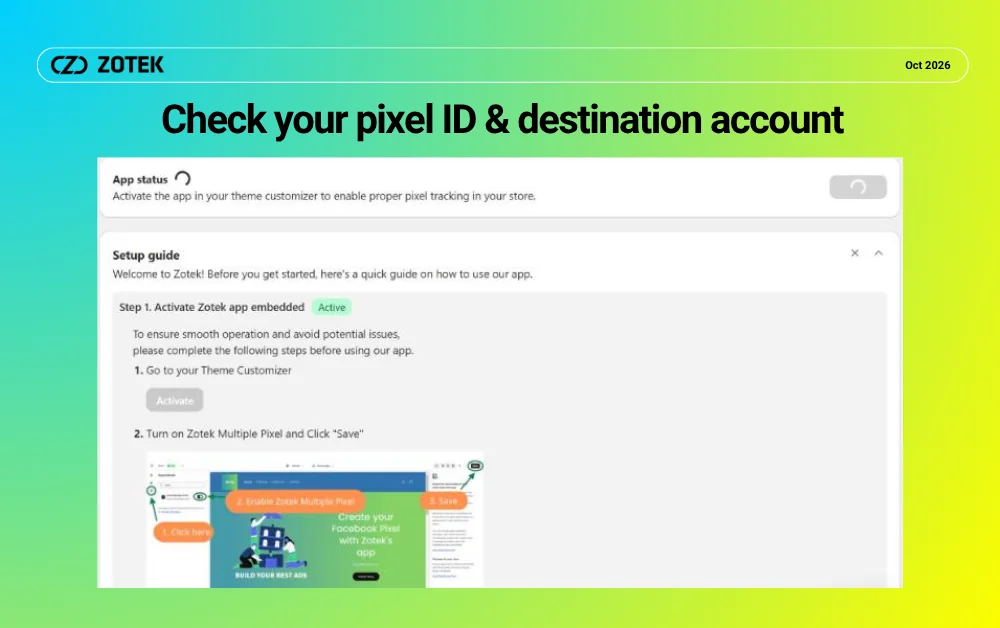
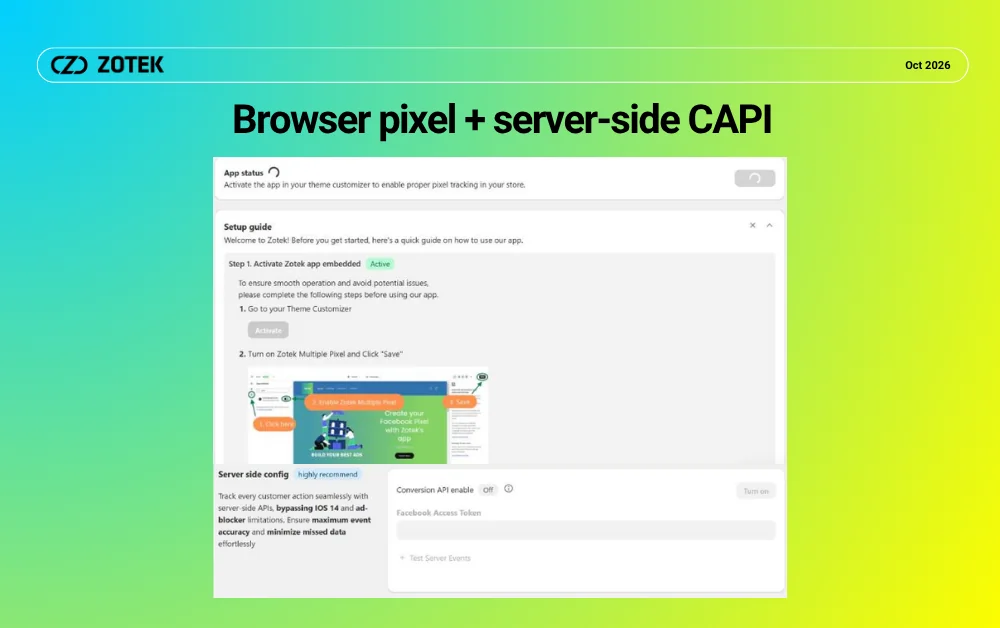
2. Review your browser and server-side settings
Check whether the Pixel and any supported Conversions API (CAPI) integration are enabled and configured as intended. Review relevant targeting settings, such as specific products or collections, if your plan uses them. A configured connection is not yet proof that a Purchase event reaches its destination. If CAPI is not connected yet, follow our Shopify Conversions API (CAPI) setup guide first.
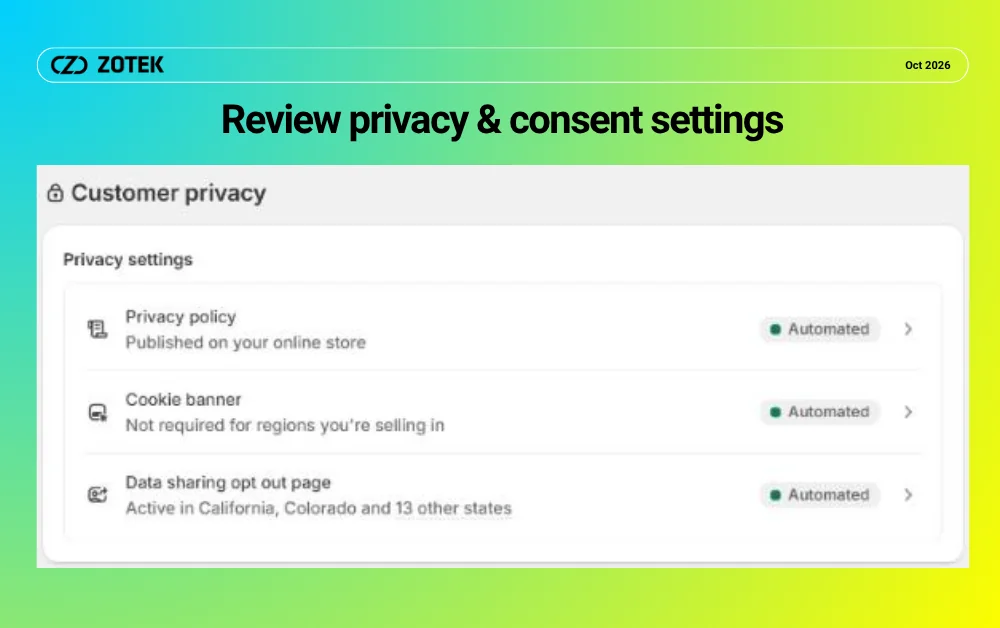
3. Verify privacy and consent behavior
Review Shopify Settings > Customer privacy and your store’s cookie or consent banner. Consent rules can change when a visitor’s pixel loads or sends data. For integrations that use Shopify Web Pixels API, Shopify Pixel Helper may be available under Settings > Customer events to inspect received events. Use the diagnostic tools supported by your setup, and test consent behavior rather than bypassing it.
4. Walk through the complete shopper journey
Use a controlled browser session and navigate from a product page to cart and checkout. Check the events your app supports: product view, add to cart, checkout and Purchase may have different names in Shopify and in an advertising platform. Note which actions you performed, which events you expected, and which events actually appeared.
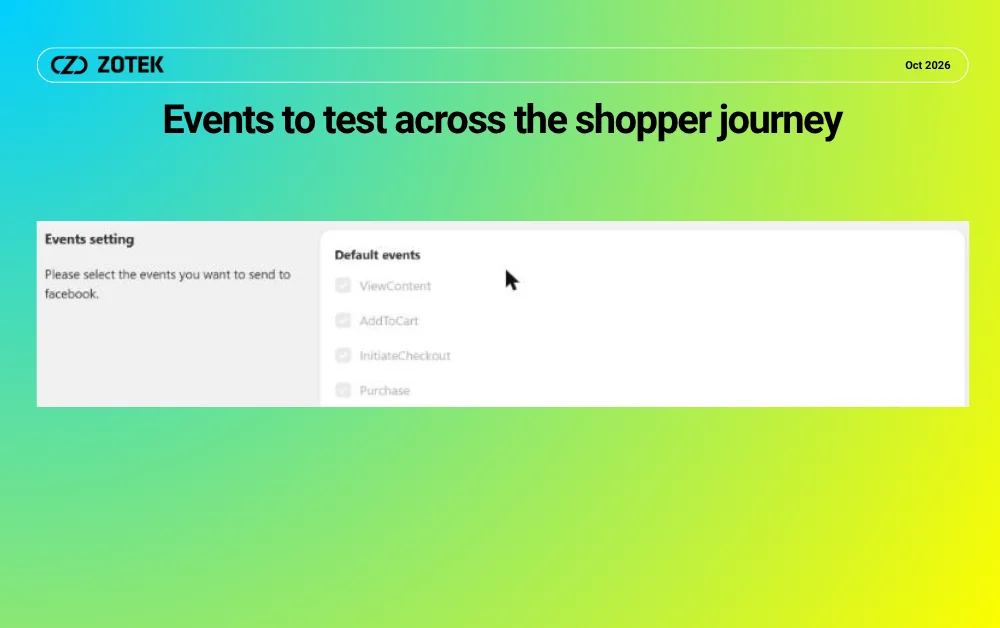
5. Check Purchase using a controlled order
Where appropriate, complete a Shopify-supported test checkout. Record the order ID, timestamp, order type and related event result. A test or draft order is not a verified customer purchase and must not be counted as real paid revenue. If a Purchase event is missing, investigate the exact event path with your technical or support team before making major campaign changes. Our guide on fixing Facebook Pixel not tracking purchases in Shopify lists common causes to review.
6. Investigate duplicates and mismatched events
If a browser pixel and CAPI both send the same purchase, check whether the integration handles event deduplication correctly. Review event IDs and the specific connection configuration; do not assume a mismatch has one universal cause. Multiple tracking apps, different destination IDs or an unusual checkout flow can also deserve inspection.
7. Interpret reporting differences carefully
Shopify order totals, GA4 events and Meta-attributed purchases represent different metrics. Compare the same date range and clearly identify which definition each report uses. Separate a proven technical failure from a difference caused by attribution, consent or reporting windows. If reported results suddenly fall during the sale, see what to check when Meta Ads ROAS drops on Shopify.
Your Shopify BFCM pixel checklist: final sign-off
Confirm the store/pixel pairing, event test evidence, expected consent behavior, Purchase checks and who will monitor tracking during the sale. List unresolved issues and assign one owner per issue. Repeat essential checks after changes to your storefront or tracking setup. For ad account checks before your campaigns go live, see our 5 essential Black Friday ad tracking checks.
Zotek Pixel helps merchants configure supported advertising pixels, CAPI settings and tracking reports. Review the settings available to your store and plan, and test your events before increasing ad spend.