
A Cash on Delivery form can look ready in the editor but cause friction on a real phone. Before BFCM traffic rises, merchants need to know that shoppers can open the form, select the correct items and send the details needed to process an order. The goal is a reliable ordering flow, not a promise that every shopper will convert or every suspicious order can be stopped. This Shopify BFCM COD form checklist helps you find that friction while there is still time to fix it.
Use the seven checks below on a controlled store setup. Test the real storefront theme, variants and shipping conditions you expect during the sale.
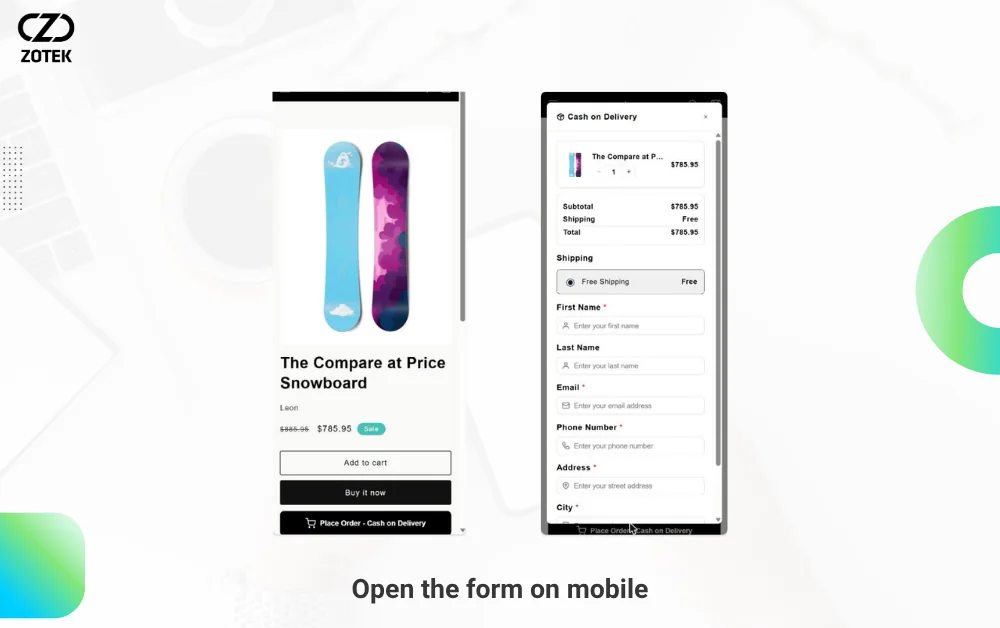
1. Open the form on mobile
Load a product page on a phone and trigger the COD form. If your setup offers both popup and embedded placements, test the enabled mode. Check button visibility, scrolling, readability and whether a sticky widget or another app covers the submit action. Repeat on at least one smaller device, and confirm the form shows on the pages you selected in the app, such as product pages, the cart or both. New to the setup? Start with our guide on how to add a COD form to your Shopify store.
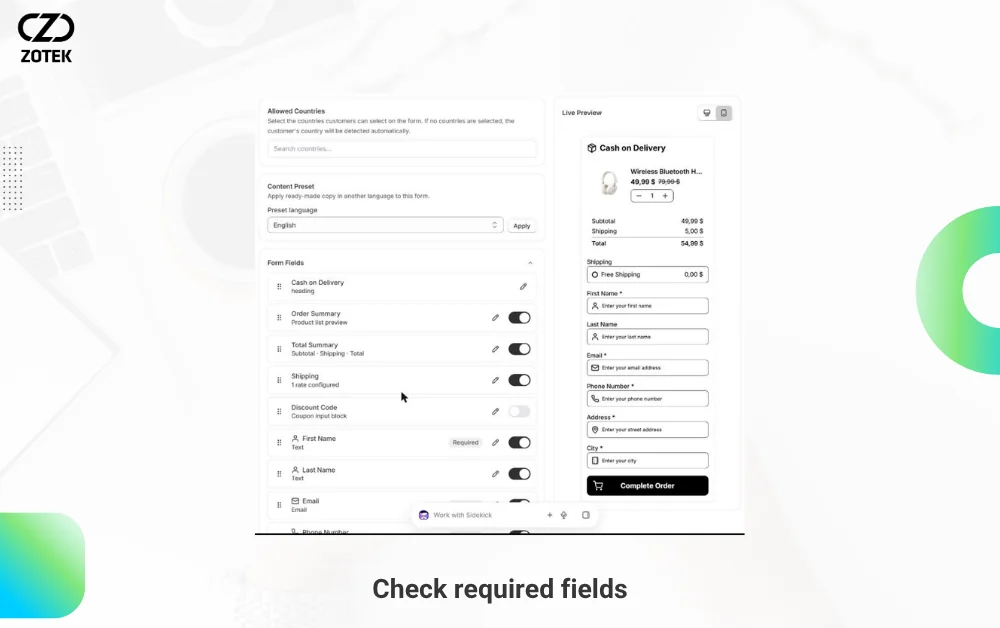
2. Check required fields and address details
Test name, contact number, delivery address and any custom fields your fulfillment team needs. Are required inputs obvious? Are validation messages understandable? Try an incomplete address to see what the shopper is told. Avoid asking for information that is not needed to fulfill the order.
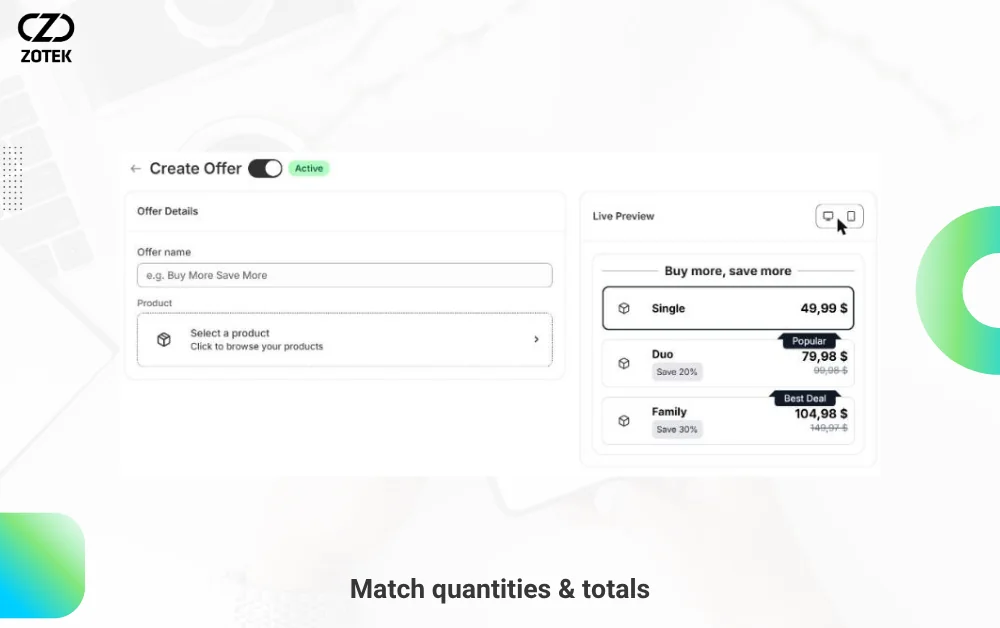
3. Match products, quantities and totals
Change product variants, quantities and shipping destinations when applicable. Verify that the chosen items and prices carry through to the order record. If you configure COD fees, quantity offers or bundles, check that the displayed totals match what the store records. If you plan to run BFCM discount codes, enable the discount code field and check that a valid code updates the total as expected. An offer visible in the editor is not proof it works correctly for buyers.
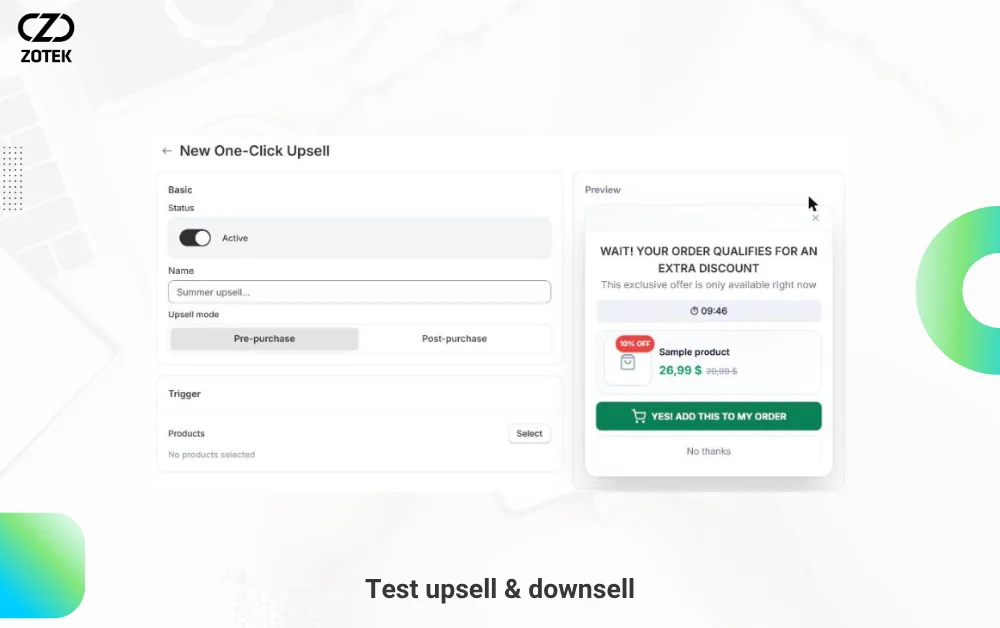
4. Review upsell and downsell steps
If your form includes optional offers, test accepting and declining them. Confirm that the final record contains the intended selection, pricing and shipping information. Make clear to the shopper when an offer adds an item or changes the total. Do not rely on a guaranteed AOV uplift claim; test the real checkout experience.
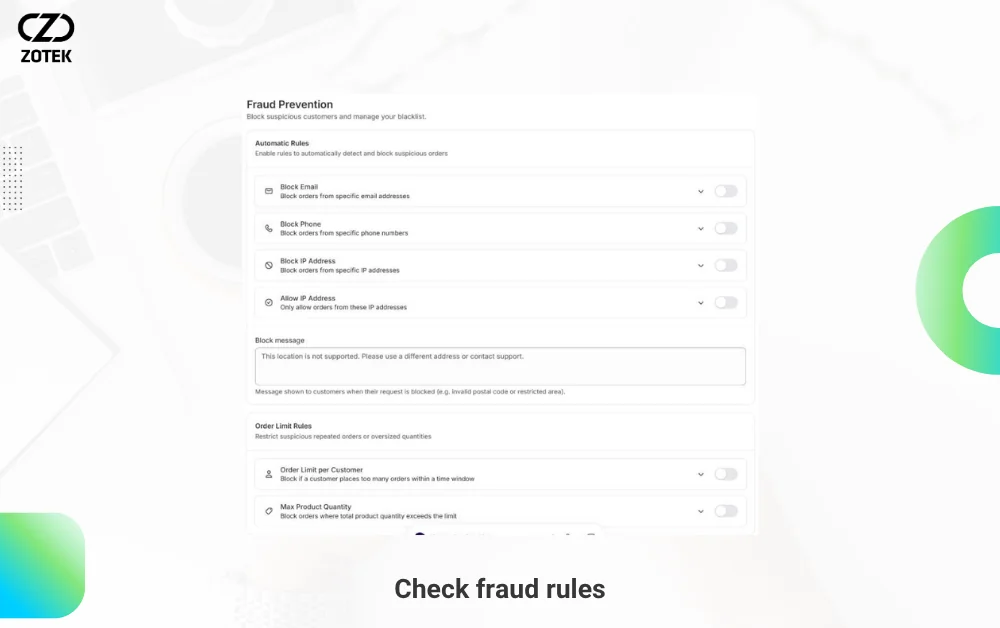
5. Check fraud rules and legitimate-buyer access
Review the email, phone, IP and order-limit rules you enabled. Test one scenario expected to pass and one that should be restricted. Overly broad rules can block legitimate buyers, so confirm that your team has a sensible way to review exceptions. These settings can help manage risk, not eliminate fake orders entirely. For more ways to manage risk, read how to reduce fake COD orders on Shopify.
6. Submit a controlled test order
Where possible, use a safe test-store or clearly labeled test workflow and do not dispatch the resulting order. Check whether the expected Shopify order or draft record was created, whether contact information was retained and whether the selected items and totals are correct. Distinguish test, draft and real COD orders; do not count tests as verified real purchases. If you run Meta or TikTok ads, also confirm that a Purchase event is recorded for COD orders. Our guides on tracking COD orders with Facebook and TikTok Pixel and testing CAPI and Purchase events before BFCM cover the details.
7. Repeat the test after storefront changes
Theme edits, product changes, apps, shipping settings and new offers can change your order flow. After making adjustments, repeat the mobile view and a controlled submission. Keep evidence of what passed, what failed and who will fix a blocking issue before the BFCM rush.
Your Shopify BFCM COD form checklist: final handoff
Before running promotions, confirm that the form appears where intended, mobile buyers can complete it, the order record matches their choices and the relevant team knows how to handle suspicious or failed orders. Keep a support route available and an owner assigned for urgent storefront issues.
Zotek COD Form supports customizable popup or embedded COD forms, order offers and available fraud controls. Choose the configuration that fits your store and verify the entire flow before increasing traffic.